Students who are new to coding may understand the syntax but still find it difficult to explain which line is blocking them. In a remote class, where an instructor cannot remain beside every student, it is especially important to see who is working on which level and what code is causing difficulty.
With Codedash Classroom, instructors can view each student's current level, completion progress, help request status, and most recently submitted code on one screen. Submitted code can also be loaded and run in the actual game level, helping instructors reproduce the situation where a student became stuck.
| Step | Task | Key feature |
|---|---|---|
| 1 | Understand Classroom features | View progress, help requests, and submitted code |
| 2 | Purchase a Classroom | Select a game and number of students |
| 3 | Activate the Classroom | Activate within 365 days for a 24-hour class |
| 4 | Use the instructor dashboard | Student list, code review, and class record download |
| 5 | Students join | Class link and help requests |
| 6 | Review important notes | Activation deadline and submitted-code scope |
A Classroom does not begin immediately after purchase. It can be activated once within 365 days of the purchase date, and the class runs for exactly 24 hours from the moment it is activated.
Student keystrokes are not transmitted live to the instructor dashboard. Selecting Request Help updates the code stored for that level only before it has been cleared. Once a clear submission exists, later help requests on that level do not replace it.
Track student progress and submitted code remotely
Check each student's progress
Compare the current level and total number of cleared levels to see how far each student has progressed through the class.
Find students who need help
Students who request help or remain on the same level for a long time appear in the list so the instructor can check on them first.
Review submitted code
Read and copy the code submitted with a help request or upon clearing a level, or run it in the actual game level.
Use it for remote instruction
When used alongside a video meeting or voice class, instructors can look at a student's actual code and explain what to change.
Classroom itself does not provide video calls or a way for instructors to send reply messages. For remote classes, use a video meeting or voice tool alongside the Codedash dashboard, which lets you monitor student progress and code.
How to purchase a Classroom
You can purchase a new Classroom from the Codedash Classroom purchase and management page. You must first sign in with an instructor account.
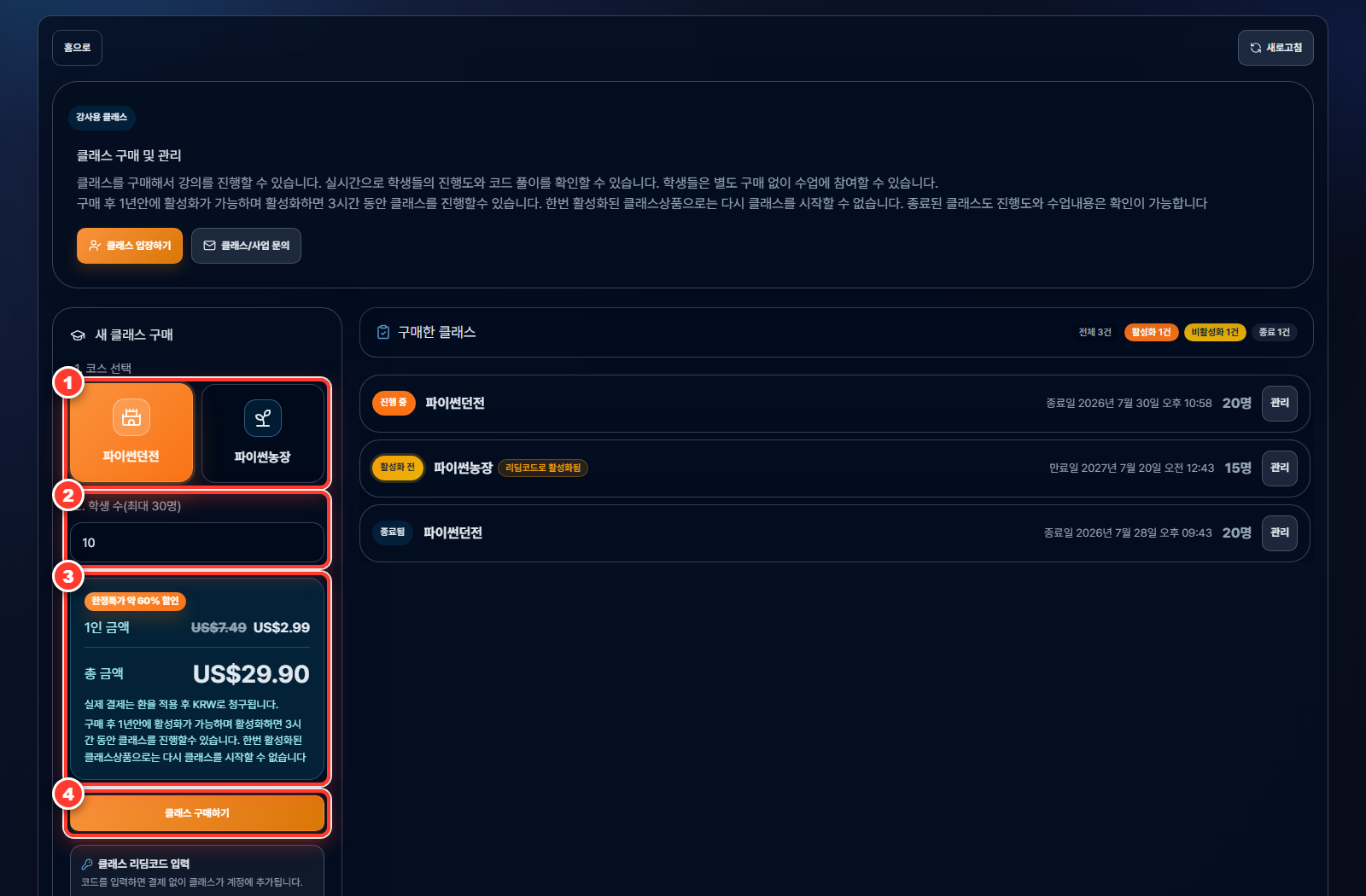
- Select a course: Choose
Python DungeonorPython Farmfor the Classroom. - Enter the number of students: You can purchase access for a minimum of 10 and a maximum of 30 students.
- Check the price: Review the price per person and the total for the selected number of students. The page displays prices in USD, while the actual payment is charged in KRW using the applicable exchange rate.
- Purchase the Classroom: Sign in and complete the payment through Toss Payments. If you have a Classroom redeem code, you can register it instead of making a payment.
After payment is complete, the Classroom is created with a Not Activated status. The 24-hour class period has not started at this point.
How to activate a Classroom and start class
Select Manage for a purchased Classroom to open its details. While its status is Not Activated, you can first check the activation deadline and the number of student seats purchased.
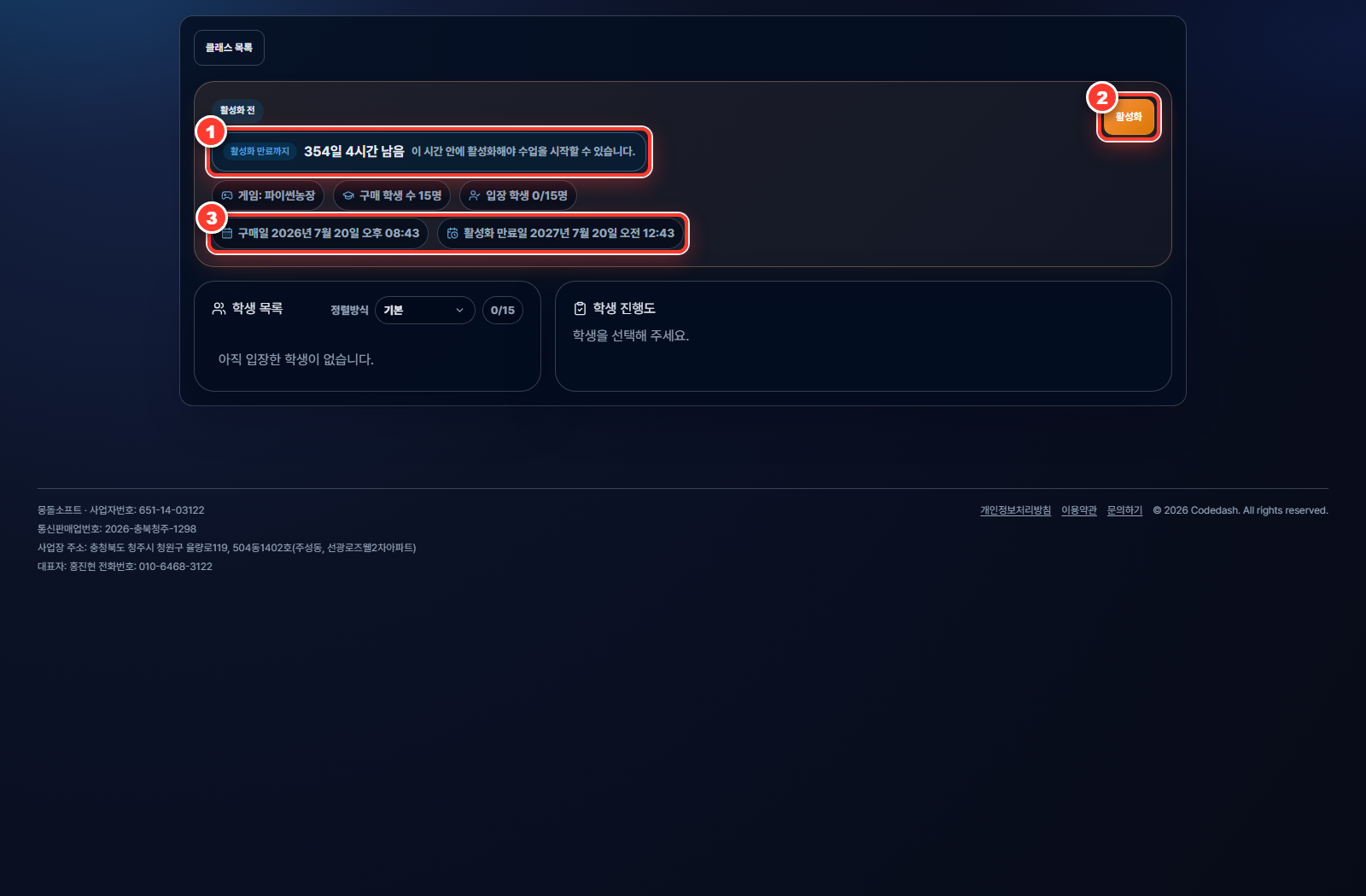
- Time until activation expires: This shows the remaining time in the activation window, which lasts 365 days from the purchase date.
- Activate: Select the button and confirm in the dialog to start the Classroom immediately.
- Activation deadline: The Classroom must be activated before this date and time.
Once activation is complete, an 8-character Classroom code and class link are generated, and the 24-hour period begins immediately. It is best to activate right before the class actually starts, after student instructions and the video meeting are ready.
The instructor can select a button labeled in the format Class Link ABCD2345 to copy the complete student entry URL. The instructor can also select End Class to end the class before its scheduled time.
How to use the instructor Classroom dashboard
Check the student list and class status
While a class is in progress, the top of the dashboard shows the remaining time, the number of students who have joined, the class link, and the End Class button.
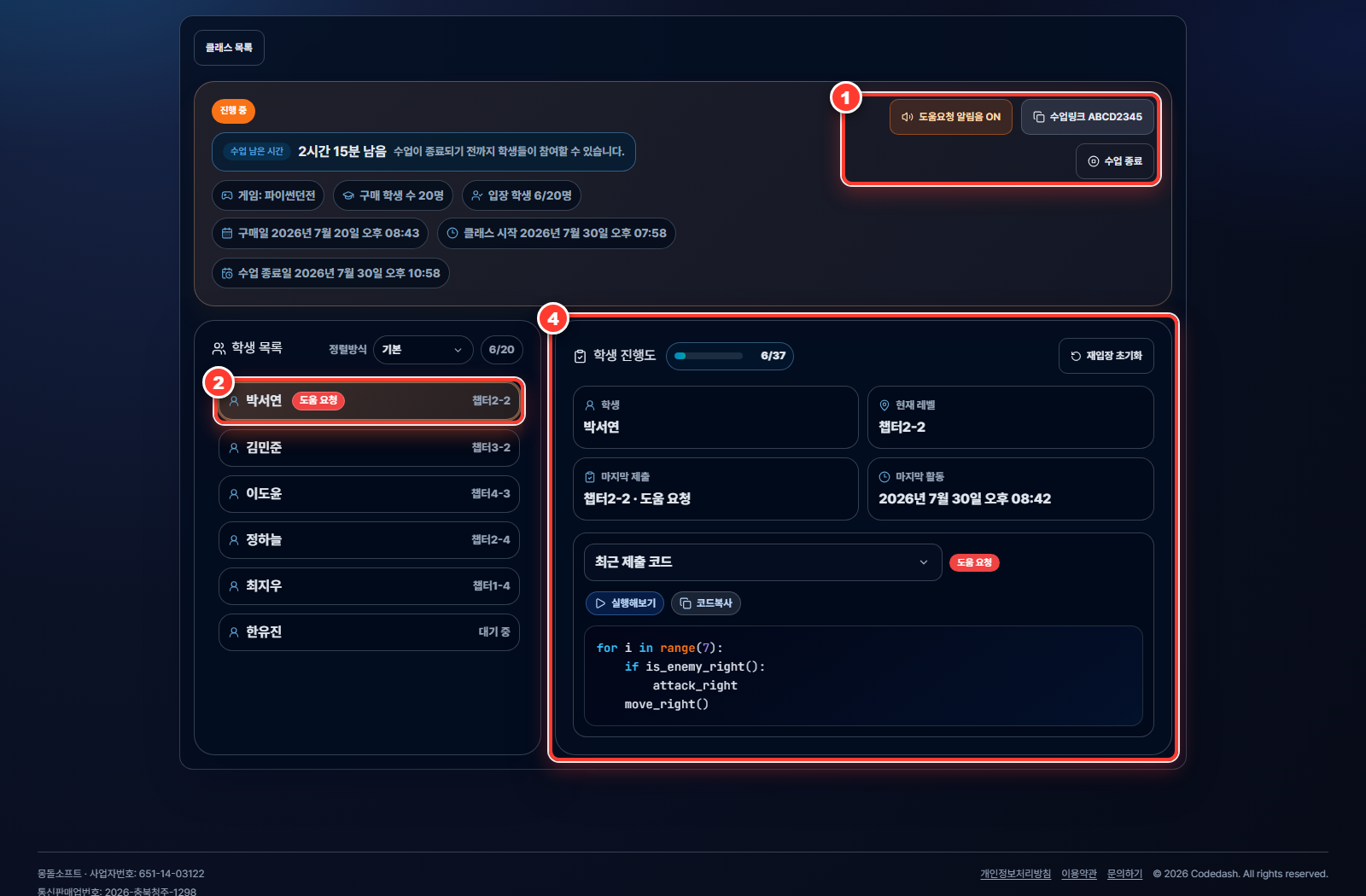
- Class controls: These controls manage the help-request notification sound, copy the student class link, and end the class.
- Help Requested: Before clearing a level, a student who selects
Request Helpappears at the top of the list with this red badge. - Inactive for 10+ minutes: This identifies students whose activity has not been updated for an extended period while they remain on the same level.
- Selected student progress: View the current level, total number of clears, last submission, recent activity, and submitted code.
Select a student row to display that student's information in the right panel. In the code selector, you can choose Latest Submitted Code or the latest submission for an individual level.
Run Code opens a new screen, loads the student's submitted code into the corresponding game level, and runs it. Any changes the instructor makes while testing are not saved back to the student's code. Use Copy Code to paste the code into external notes or class materials.
How to respond to a help request
- Select a student marked
Help Requested. - Check the current level and submitted code.
- Use
Run Codeto reproduce the same error or movement. - Explain what the student should change in person, through a video meeting, or by voice.
- When the student clears the level, the last-submission status is updated and the
Help Requestedbadge disappears.
There is no separate reply or Mark Resolved button for student help requests. The instructor reviews the submitted code and gives guidance directly during class.
Export student code to Excel after class
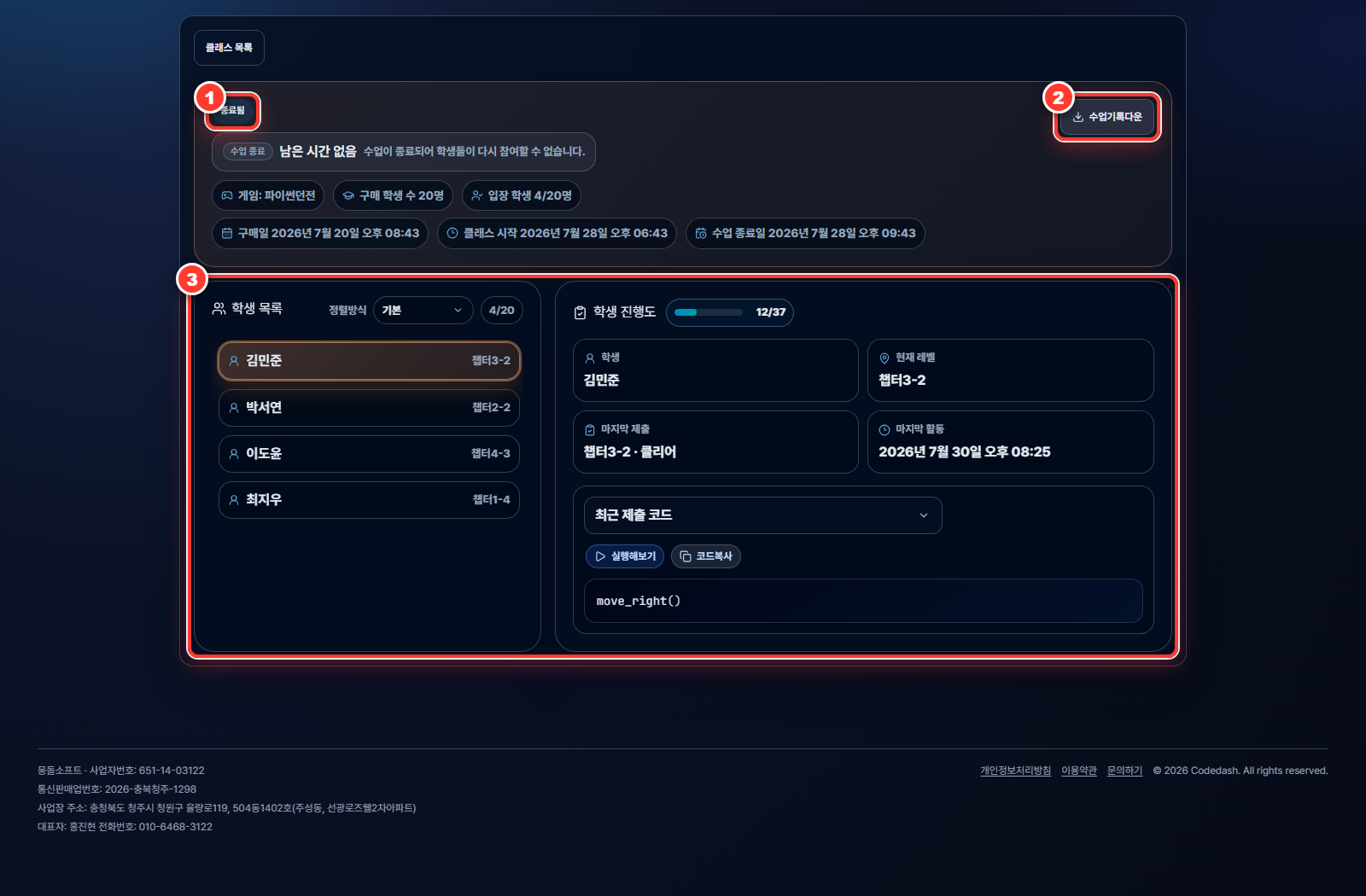
- Ended: The Classroom has either reached the end of its 24-hour period or been ended manually by the instructor.
- Export Excel: Generate an Excel file containing the
Class Summaryand each student's level code. - Past class records: Continue reviewing each student's progress and stored code for each level after the class has ended.
The downloaded Excel file contains a Class Summary sheet and a separate sheet for each student. Each student sheet includes the level, submission type, submission time, level completion status, and code.
The Excel file and dashboard keep one stored submission per student and level rather than a chronological history. Request Help can update it before the level is cleared. Once a clear submission exists, later help requests do not replace it.
How students join a Classroom and request help
Join with a Classroom code and name
Students can open the class link provided by the instructor or manually enter the 8-character Classroom code on the student Classroom entry page. Students do not need to create a separate account or purchase the game.
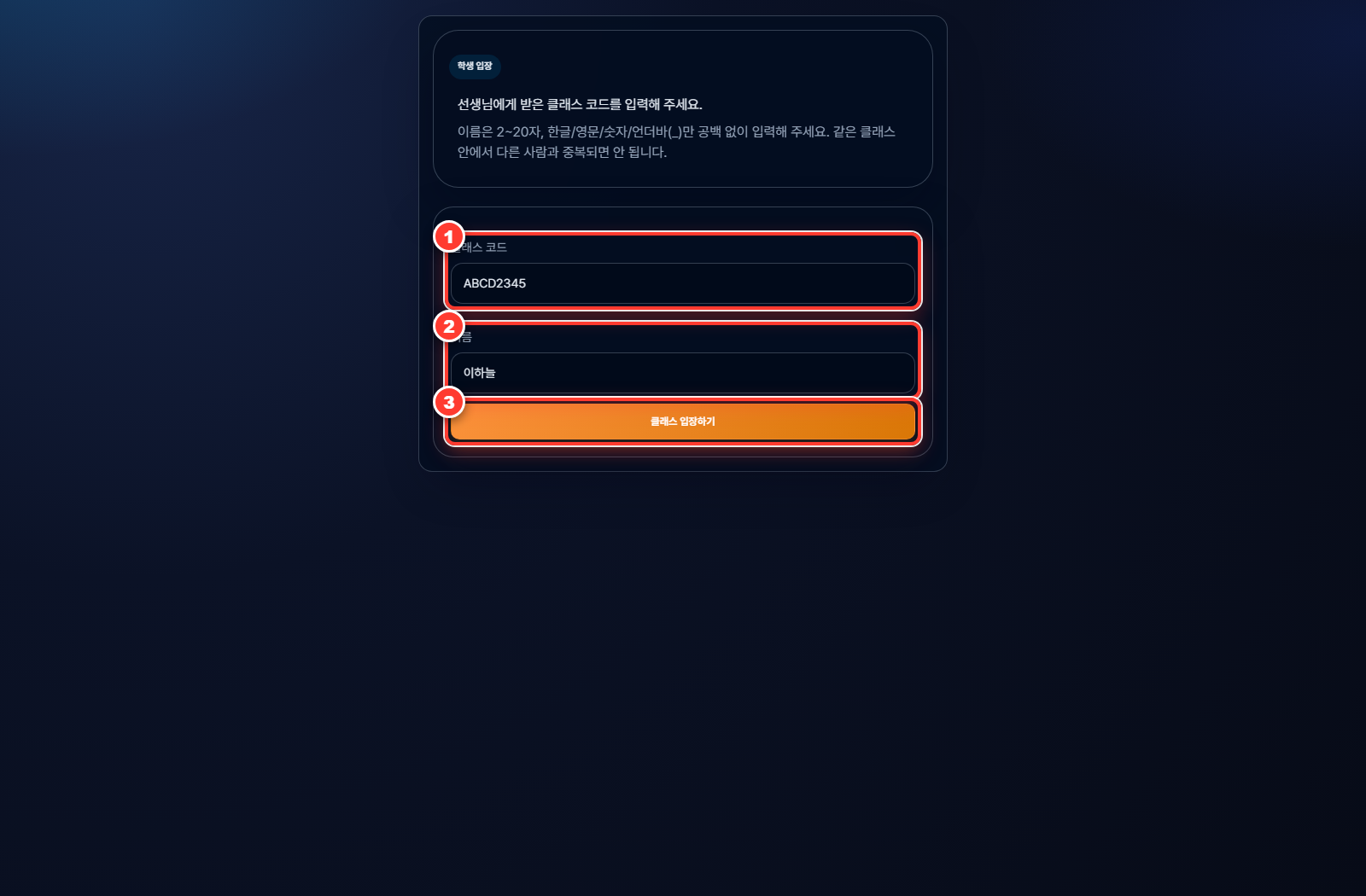
- Classroom code: This is the 8-character code provided by the instructor. It is entered automatically when the student uses the class link.
- Name: Enter 2 to 20 Korean or English letters, numbers, or underscores without spaces. The name must not duplicate another student's name in the same Classroom.
- Join Classroom: Select the button to join while the class is active.
After joining, students begin learning from the Classroom-specific chapter selection screen. They can use the game assigned to that Classroom during class, regardless of whether they have purchased it individually.
Request help with the current code when stuck
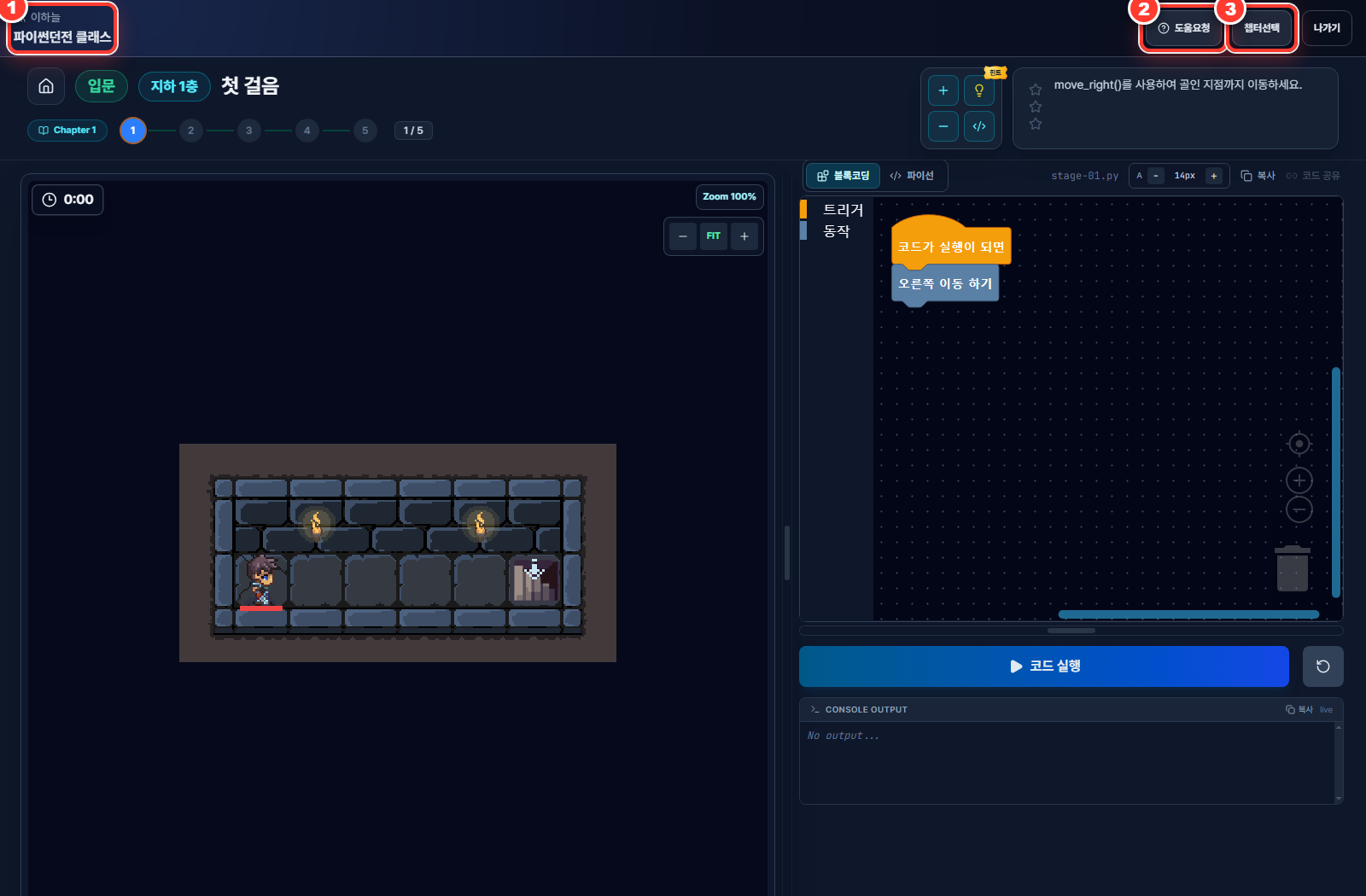
- Student and Classroom information: Check the name of the student currently signed in and the game assigned to the Classroom.
- Request Help: Before the current level is cleared, alert the instructor and update its stored code.
- Chapter Select: Return to the Classroom chapter selection screen without exiting the game.
Request Help does not send a text message. Before a level is cleared, it updates the stored code for that level. Once a clear submission exists, later requests on the same level do not replace that code. Wait for guidance through the video meeting or class while the instructor reviews the submission.
Important notes before using Classroom
Activate within 365 days
The 365 days after purchase are the activation window in which you can start the class, not the class duration.
24 hours begin on activation
Exactly 24 hours are counted from the moment you select the Activate button.
The same purchase cannot be restarted
A Classroom purchase that has been activated once cannot start another new 24-hour class.
The link is created after activation
There is no student code immediately after purchase; the class link is generated after activation.
Code at submission time
You see code submitted with a help request or upon clearing a level, not the student's live typing.
Export Excel after class
The Export Excel button appears for a Classroom that has ended normally.
Start a class with Codedash Classroom
Purchase a Classroom for the game and number of students you need, then activate it when your class preparations are complete. Students join by link without an account or individual purchase, while the instructor manages the class by checking progress and submitted code.
Purchase or manage a ClassroomYou can activate within 365 days of purchase, and the class runs for 24 hours from activation.
Frequently asked questions
Does the 24-hour period start immediately after purchase?
No. After purchase, the Classroom has a Not Activated status, and the instructor can activate it within 365 days of the purchase date. The 24-hour period begins when the Activate button is selected.
Exactly how long is the class?
The current active class period is exactly 24 hours. It ends automatically after 24 hours.
Do students need a Codedash account or a game purchase?
No. They can join using only the active Classroom's 8-character code or class link and a name.
Can the instructor see code as a student types it?
No. The instructor sees submitted code rather than live typing. Request Help updates a level's stored code only before it is cleared. Once a clear submission exists, later requests on that level do not replace it.
Can the instructor reply to a help request?
There is currently no instructor reply or resolved-status button. The instructor reviews and runs the submitted code, then guides the student in person, through a video meeting, or by voice.
Can student code still be viewed after class?
Yes. After a Classroom ends, its management page continues to show each student's progress and stored code for each level, and Export Excel generates an Excel file.